


Get started
Roles and permissions
Who can see, edit and publish what inside an event — and how to involve external partners without opening everything up to them.
Permissions in iveo do not belong to a person, they belong to that person’s role in a specific event. The same person can be a Producer in your pavilion and a read-only visitor in another event. Everything else follows from that.
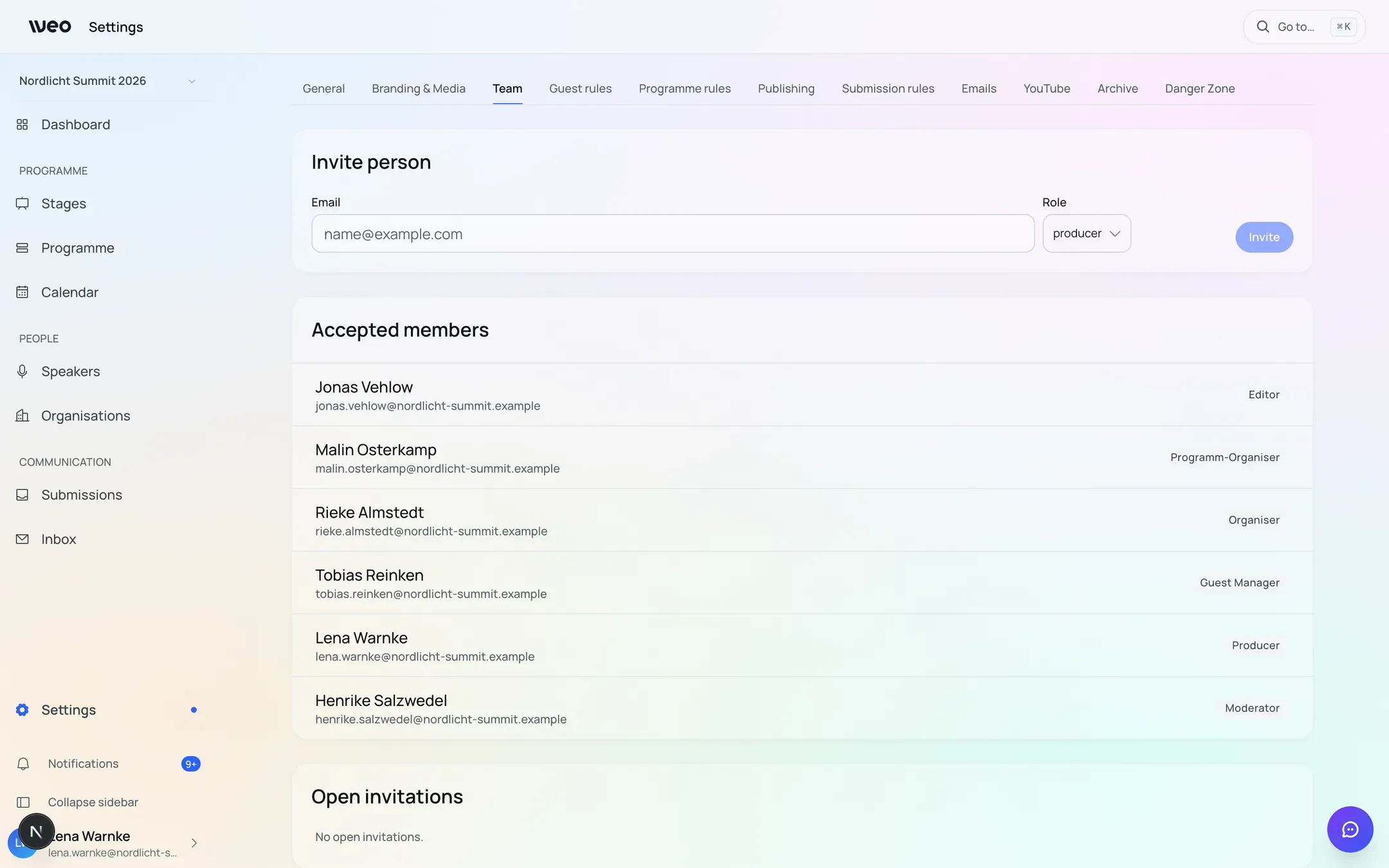
Sample data from a demo event — all names and addresses are invented.
Two levels
The event role applies to exactly one event. It is assigned with the invitation and only takes effect once the person has accepted — until then they see nothing, even though they already appear in the member list.
The global role applies outside any event, for example to the question of whether someone may create an event of their own.
For multi-level events — an umbrella event with events underneath it — the role in the umbrella event also applies downwards. It adds permissions and never takes any away.
The roles
| Role | What it means day to day |
|---|---|
| Producer | The most senior role on the customer side. May edit and publish everything in the event, connect your own domain, merge duplicates and create sub-events. |
| Organiser | Like Producer for content and planning, but without publishing the event as a whole and without domain management. Applies across the whole event. |
| Programme Organiser | Looks after individual programme items assigned to them — the typical case for external partners. More on this below. |
| Editor | Editorial work on programmes, people and organisations. No structural changes to stages and schedule. |
| Guest Manager | The guest list and nothing else. No access to programme, people or organisations. |
| Operator | On show day: switching stages and timing. Reads programme details and running order. |
| Director | Control room and show control. Sees content, does not change it. |
| Moderator | Moderating a session. Reads the calendar, people and their own programme details. |
| Speaker | Maintains their own profile, plus access to the programme items they are assigned to. |
By the way, “co-host” is not a role. It is a note on an organisation’s entry in an event: it describes a partnership, not access.
What each role may do
The short version for the five roles that appear during planning. The show-day roles — Operator, Director, Moderator, Speaker — read content but do not change it.
| Producer | Organiser | Programme Organiser | Editor | Guest Manager | |
|---|---|---|---|---|---|
| View the calendar | ✓ | ✓ | — | ✓ | ✓ |
| Edit stages and schedule | ✓ | ✓ | — | — | — |
| Edit programmes | ✓ | ✓ | own only | ✓ | — |
| Maintain people and organisations | ✓ | ✓ | own only | ✓ | — |
| Work on submissions | ✓ | — | — | — | — |
| Guests and registration | ✓ | ✓ | — | ✓ | ✓ |
| Publish individual content | ✓ | ✓ | own only | ✓ | — |
| Design the website, publish the event, connect a domain | ✓ | — | — | — | — |
| Invite people into the event | ✓ | ✓ | — | — | — |
The distinction that matters in practice
What separates Organiser from Programme Organiser is not the depth of their permissions but their scope: the Organiser works on the whole event, the Programme Organiser on individual rows within it.
A Programme Organiser may fully maintain and publish the programme items assigned to them — including people, organisations, running order and topics. They see no other programmes, no calendar, no submissions, no guest list and no member list. They also cannot create new programme items or delete any.
This is exactly what large pavilions need: a partner organisation gets its own session to look after, without visibility into the other partners’ sessions and without seeing the host’s staff list.
The assignment happens on the programme item itself, in its team area — not in the member list. There are three ways in:
- Pick someone from the existing team. If the person is not in the event yet, their membership is created as a pending invitation.
- Invite by email. An invitation with an access link goes out, and the assignment takes effect automatically once the person joins.
- Automatically when accepting a submission. Whoever moves a submission into the programme can invite the person who submitted it as a Programme Organiser in the same step. This option is switched off by default everywhere.
Two things are deliberate here. Nobody becomes a member without being asked — until they accept, the invited person sees nothing, not even their own programme. And an existing, more senior role is never downgraded: someone who is already a Producer and receives an assignment stays a Producer.
Permissions can be adjusted
The above describes the defaults. They can be adjusted per event if your organisation needs a different cut. Talk to us — we will work through it together.