


Publish
The public event website
What of your data becomes public, who releases it and how the site looks: programme, speakers, organisations and partners.
The data your team maintains anyway becomes a public event website. You look after the programme once. The website follows as soon as you let it.
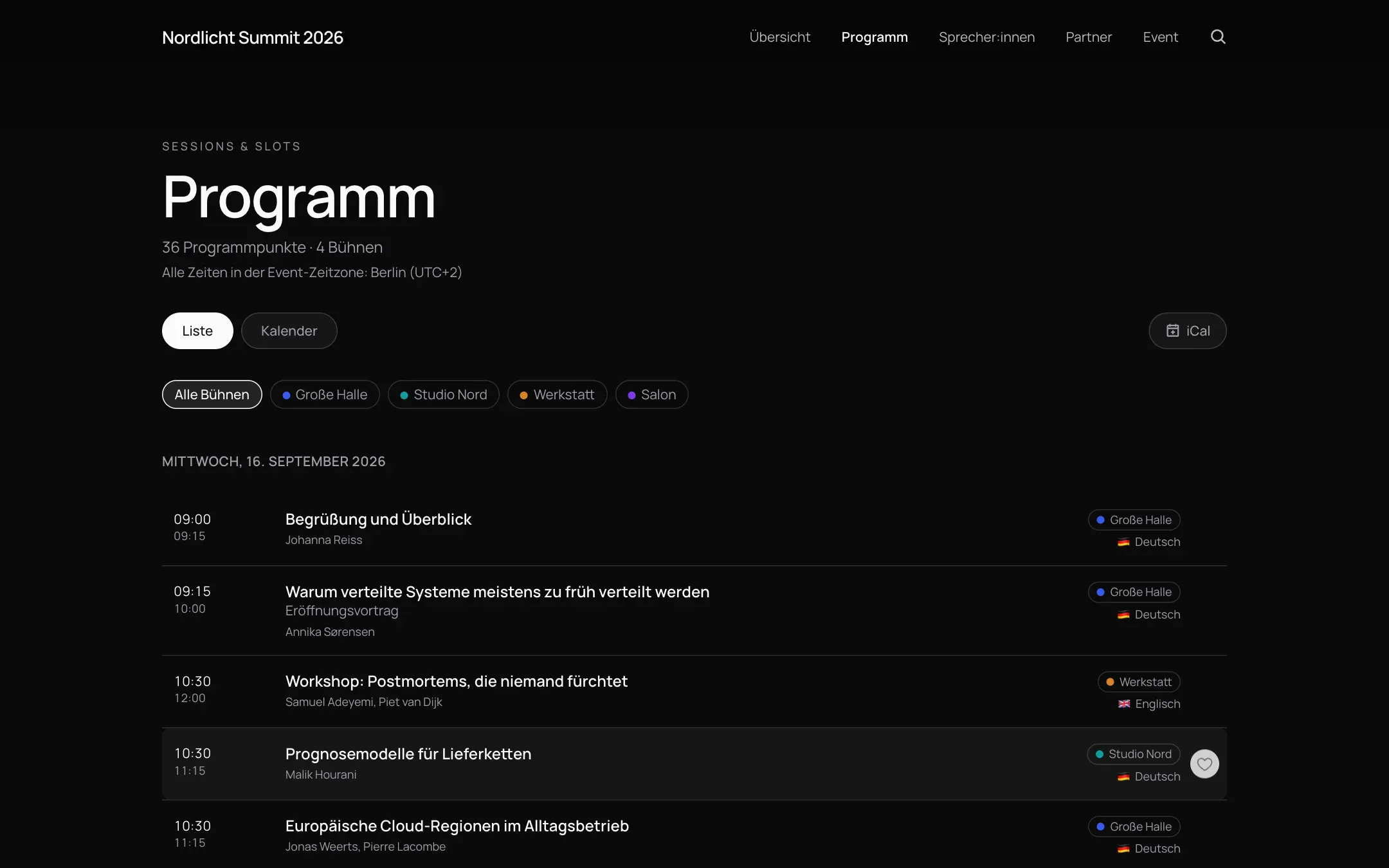
Sample data from a demo event.
Publishing is a deliberate step
Nothing becomes public on its own. You release what should go out, and the public site reads only that released selection. An unfinished programme item, an internal note or a person not yet confirmed simply do not exist for visitors: not hidden, but never there in the first place. The one exception is livestreams: once YouTube creates the livestream of a programme item that’s already published, it appears on the website by itself, a private one never.
You can release individual pieces of content or the whole event at once. Before you do, the release dialogue shows what has changed since last time. Once the event is published, there are two buttons: “Publish content” republishes programme, speakers, organisations and pages, “Update design” only design and pages. Each button’s tooltip says what it covers. “Update design” asks first, and programme, speakers and organisations stay unchanged.
What the site contains
- A home page with your own opening.
- The programme in four views: list, cards, calendar and (for multi-level events) a timeline with one row per stage. A programme item’s title, subtitle and description appear in the visitor’s language if you’ve maintained it, otherwise in the original.
- Speakers and organisations, each with detail pages. Speakers only appear if they are confirmed on at least one published programme item. Under “Partners & hosts”, next to the organisations you maintain there, you also find every organisation that is only linked to a published speaker or programme item, in a group called “Involved”. Search finds them, and the organisation chips on speakers and programme items lead to the organisation’s detail page. On a programme page, each speaker shows their primary organisation with its logo, and the programme item’s organisations follow the order you keep in iveo. Host and co-hosts appear together on the website, in the order set in the event settings; the “Show co-hosts on the website” switch in the panel of the “Partners & hosts” page names only the primary host if you prefer.
- About, search and a personal shortlist.
- Calendar export, so guests can put sessions into their own calendar.
All times appear in the event’s time zone, and the site names it, “All times in the event time zone: Istanbul (UTC+3)”, instead of leaving visitors to guess. If the time zone of their device differs, the page of a programme item also shows “Your time: …” below the time, with the date if the day changes. The device’s time zone is neither stored nor sent anywhere for this. While the event is running, a line marks the current moment in the programme.
Languages appear on the website as names with a flag, in the page’s language, instead of codes: above the title of a programme item, in the programme list, on the cards, in the live box on the home page and in a speaker’s languages. Only the narrow timeline keeps short codes. If the website offers several languages, the switcher at the top names each one in its own spelling, so everyone finds theirs. If a programme item has livestreams in several languages, the language choice sits below the video and starts in the page’s language. If visitors pick a language there that the website offers, the page switches too, otherwise only the video; the other way round, the livestream follows the switcher at the top. On a speaker’s page, their role at an organisation only appears next to it when it differs from the visible job title.
Design
You pick a template and bring your own branding: colours, logo, hero image. The home page is a freely sortable list of blocks: countdown, trailer, key figures, topics in focus, speakers in focus and more. Each block hides itself while its data is missing, so there is nothing to tidy up that is not there yet. If the home page already has blocks of its own, iveo asks before you switch template: the new template’s starting layout then replaces every block, and that cannot be undone.
The editor
You open the editor in the event sidebar under “Website”. The settings are on the left and the real site is on the right as a preview, in two tabs:
- Design: colours, typeface and theme. You see changes to these in the preview straight away; background, font files and logos appear after you save. In the “Navigation: Menu items” card you switch each navigation entry on or off and put the entries in your own order, by dragging or with the keyboard, on every template and in the mobile menu too. Whether an entry appears in the navigation is independent of whether you hide the page itself. Where your own conference links replace the navigation, the “Past editions” switch still hides a link to past editions there. In the “Footer” card you give the footer a surface of its own: “None” lets the page behind it show through, “Accent” uses the accent colour, “Custom” a colour of your choice. iveo picks the text colour so it stays readable. In the “Favicon” card you upload the small icon for browser tabs, bookmarks and home screens: PNG or SVG, square, at least 512 × 512 px, up to 1 MB, with a preview, “Replace” and “Remove”. Without an upload the website shows the initials of the event name on the accent colour. A new favicon appears with the next publish; browsers sometimes keep an old icon for a while.
- Pages: at the top, the “Page” switcher sets what you are working on: the home page, a system page (Programme, Speakers, Partners & hosts, Event, Imprint, Cookies & external media), a custom page or a filtered programme page. Next to it, “Add page” creates new pages and “Manage pages” looks after them. For custom pages and the imprint you enter an “SEO title” and an “SEO description” per language there, under “Search engines & browser tab”; if the title stays empty, the page title applies. In the browser tab every page of the site shows its own name before the event name, the home page only the event name. Below, the blocks of the selected page are listed as an outline, with the hero always first on the home page. Select a block and its settings open in a panel underneath. With “Click to edit” on, you can also select a block by clicking it in the preview. After you save, the preview refreshes without losing your place. For the “Partners & hosts” system page, the “Page content” card sets the title (for example “Partners” or “Organisers”, or your own under “Custom title” per language) and hides individual groups such as “Sponsors” or “Partners”; one group always stays visible. Title and groups also apply to the navigation, the footer and the organisations block on the home page, after the next publish. On the “Speakers” system page, “Speakers & organisations” sets what speaker cards and programme pages show: “Job title”, “Organisation” and “Organisation logos” on the cards and in the profile, plus “Participating organisations” at the end of a programme page and their “Organisation roles”. Everything is on by default; changes take effect after the next publish. Hiding only changes the display: if a job title shouldn’t be public at all, remove it from the person.
In the “Programme display” card you choose, per programme view (“List”, “Cards”, “Calendar”), which details a programme item shows: subtitle, speakers, organisations, topics, type, format, ressort, stage and language. For organisations you pick “Off”, “Host organisations only” or “All organisations”. Events with only one stage never show the stage. Cards show each programme item’s time span from start to end, and host organisations’ logos link to their detail page.
Below it, the “Programme pages” card sets what the page of a single programme item shows above its title. With “Hide the stage if there is only one”, the stage is left out as long as only one stage has published programme items. With “Hide the language if there is only one”, the language is left out as long as all published programme items share the same language; a programme item held in two languages still shows its languages. Both switches are on by default. Turn one off and the page always shows that detail, after the next publish. In the “Order of sections” list you set, with the arrows or by dragging, the order in which the page shows its sections below title, time and tags: description, livestream and recordings, Slido, speakers and participating organisations. Sections without content are skipped, and if the description isn’t first, it gets the heading “About this session”. The order also takes effect after the next publish.
In a block’s settings you pick layouts and colour tones from small picture cards and short options with switches; background and spacing always sit at the bottom under “Background & spacing”. All changes go live with the next publish.
Search & AI
The “Search & AI” card (“Optimise for search engines and AI assistants”, on by default) gives search engines structured data about the event, programme items and speakers and provides AI assistants with an “llms.txt” file holding the website’s key facts. For people it contains only name, organisation and link, never photo, biography or social links. Switching it off takes effect after the next publish.
Hero layouts
For the hero of the home page you choose one of four layouts: “Classic”, “Trailer”, “Countdown” or “Cinema”. Depending on the layout, the countdown and the trailer sit above or beside the title, each in several sizes. The countdown can have its own target date, its own label and a smallest unit, days and hours only, for example. Rarely used options are under “Customise”. Existing websites look exactly as before until you pick a layout.
Instead of the event name, the hero can carry a “Heading” of your own, per language. You choose the “Heading size”, the “Alignment” (“Start” or “Centred”) and the “Position in the hero”: “Top”, “Middle” or “Bottom”. With “Show the event name below the heading” the name appears small underneath. If a countdown or trailer sits beside the heading, the text stays aligned to the start. Without a heading of your own, the hero shows the event name.
Hero buttons
The hero of the home page carries up to three buttons. For each one you set a label, an emphasis (Primary or Secondary) and a target: a system page, a custom page, a section on the home page, an external link or the registration. If you leave the label empty, iveo uses the standard wording for that target. A button whose target cannot be reached does not appear on the site, for example because the target page is hidden or still a draft, or because no registration is set up. The editor tells you why on the row. You switch on the livestream in the hero in the same block with “Show running livestream”.
The “Features” block
The “Features” block shows up to six cards made of an image, a heading, text (up to 2,000 characters) and an optional link with its own label. You add it on the home page and on custom pages. You pick the layout from picture cards: “Image on top” (up to three cards per row), “Image beside” (up to two per row) or “Wide rows” (one wide card per row, with the image beside the text). For the image fit you choose between “Logo” (shown whole, never cropped) and “Photo” (fills a 4:3 frame). You sort the cards by drag and drop or with the keyboard.
The “Link list” block
The “Link list” block gathers resources and links in one place. It carries an optional heading and up to 30 links, each with link text, address and an optional short description, all per language. Only https addresses are allowed. A link without text or without an address does not appear on the site, and the editor tells you so at the field. On the site the links open in a new tab. You add the block on the home page and on custom pages.
The “Past editions” block
The “Past editions” block shows past editions of your event. Under “Number shown” you pick “All”, 3, 4 or 6, newest first. Under “Layout” you choose between 2, 3 or 4 columns and “Compact list” with a small logo, title and year. For the “Thumbnail”, “Logo” stands for an image shown whole on a white tile, and “Photo” for one that fills the tile edge to edge.
Legal notice
You maintain the legal notice of your event website yourself under “Pages”. Under “Provider of this event website” you either complete the required details with “Fill in details” (name, legal form, address, representation, email, phone, register, VAT ID, responsible person) or paste your legal notice word for word with “Own text”. On top come “Additional sections”, a “Liability notice” (standard text, custom text or hidden) and an “Addition to data processing”, for example a link to your own privacy policy. “Copy from another event” copies the legal notice of an event you can edit. Platform operator and data processing are set by iveo and appear on every legal notice. If required details are missing, the publish dialog points that out without blocking. The legal notice becomes visible with the next publish.
Hiding pages
Individual sections can be hidden. If you want to go live weeks before the programme is finished, switch the programme or speakers off for the time being: they disappear from navigation, footer and sitemap, and their addresses lead to the home page rather than an error page. You find the switch in the editor on the “Pages” tab: pick the system page in the switcher and the panel next to it shows “Show this page on the site”. The imprint and cookies pages always stay visible and have no switch.
Who releases
Designing the website, publishing the event as a whole and connecting your own domain sit with the Producer role. Editors may release individual pieces of content too, and Organisers and Programme Organisers may do so for exactly their own programme items. The details are in Roles and permissions.
Publishing with approval
If nothing should go live without a Producer, a Producer sets “Who may publish?” under Settings → Publishing to “Organisers and team request, producers approve”. Organisers, Programme Organisers and Editors then see the “Request publication” button instead of “Publish”, on programme items as well as on stages, speakers and organisations. Each event has at most one open request; anyone who requests after that has their changes added to it.
Producers get a notification in the bell and a notice on the event’s dashboard. “Review” shows them the open changes, and they choose “Accept and publish”, which takes everything open live, or “Decline”, with a reason if they want to give one. If something changed after the request, they tick “Also publish the newer changes” before accepting. The person who asked learns the outcome through the bell. Producers see earlier requests and their reasons in the “Approval history” under Settings → Publishing, everyone else in the request dialogue under “Earlier requests”.
Taking content offline stays direct, and Producers always publish directly themselves. Approval is off by default. If a Producer switches it off again, an open request is cancelled.
Under your own address
By default the site runs on an iveo address. You can put it on your own domain: your address then stays in the address bar, with no third-party branding. After you publish, it can take up to about two minutes there before new visits show the new version. What your IT needs to do is covered in Connecting your own domain.