


Plan
Programme and Calendar
Set up stages, keep programme items up to date and schedule them on the calendar, plus the programme page with countdown, formats, agenda and materials.
Four pages belong together: stages, the programme list, the programme item editor, and the calendar. You set up stages once, early on; you maintain programme items continuously; and the calendar is where both come together in time and space. For how to create an event in the first place, see “Create an event”; for who can do what here, see Roles and permissions.
Setting up stages
Before a programme item can go anywhere, it needs a stage: the room or area it happens on. You find stages in the event sidebar under “Stages”. Each stage has a name, a description, a colour, and an optional image; the colour reappears later on the calendar and on the public event website. You can search stages, reorder them, archive and restore them. Deleting one for good shows you first how many programme items are on it. Those only lose their stage assignment, they are not deleted along with it. A stage also carries a Zoom room (join link, meeting ID and passcode) and two PDFs: “Notes for interpreters” and “Notes for virtual participants”. Both are meant for the team and the interpreters (see Interpretation) and never appear on the event website; you add them once the stage is saved. Only producers see the “Stages” page. If it’s missing from your sidebar, that’s your role, not a bug.
The programme list
The programme list shows every programme item in the event as a list, table, cards, or a compact view, searchable by title, subtitle, description, or language, sortable by name, start time, stage, type, or the people assigned. A status badge tells you whether a programme item is draft, pending, or published. Next to it, “Planning 2/4” shows how many of the four planning boxes are already marked as done (see Marking boxes as done); the “Planning” filter narrows the list to “Done (4/4)” or “Open (< 4/4)”. Blockers (lunch breaks, press slots, blocked time) no longer appear here; they are calendar-only objects now, more on that under Calendar below. Creating or editing opens a dialog with two tabs, “Basic info” and “Schedule & logistics”; you can only publish a programme item once the event itself is published and, if a publishing date is set, only from that date on (see The publishing countdown).
The programme page
Clicking a title in the programme list opens the programme page, the workbench for exactly this one programme item. Every box has “Edit” in its top right corner and turns into a form in place; you save with the bar at the bottom, one box at a time. Some boxes save immediately (the thumbnail, the format selection and materials, for example), so they have no edit mode. You collapse and expand every box by clicking its heading; your browser remembers this per box, and a box is always open while you edit it.
Several people can work on a programme item at the same time. Whatever someone else saves shows up in the box straight away and lights up briefly. The header shows who has the page open right now, and each box shows who last worked there. A conflict only arises when two people have changed the same field: you then decide right at the field whether to take the other person’s version or “Keep mine”. Nothing is overwritten silently.
Every programme item carries a number that is assigned in sequence per event; submissions and programme items share the same count, so no number appears twice. Programme organisers find their programme items in the sidebar under “My programme”: each entry shows the organisations involved, the number and the date and time in the event’s time zone. Anyone whose event role is Speaker also sees only their own programme items there, and can read them but not edit them.
The publish dialogue shows you the programme item as it will then appear on the event website: in the website’s look, with its speakers and organisations. One line sums up what the next click adds, changes or removes, and “Show changes” highlights exactly that in the preview. New or changed speakers and organisations of the programme item go online with it, and of the speakers only confirmed ones. If there’s nothing to publish, the dialogue tells you so.
Marking boxes as done
You can mark four boxes as done one by one: speakers, organisations, agenda and interpretation. Clicking “Done” on a box locks its contents for everyone. The box then carries a padlock, adding and editing are switched off, and “Done · name · date” shows who locked it and when. Another click unlocks it again, straight away and on every device. Whoever may edit a box may also mark it as done and unlock it.
If someone else is editing the box at that moment, iveo only locks it once they save or close, at the latest one minute after their last input. Until then they get a notice. A few things still work in a locked box: sending the Zoom info or the interpreter invitation again, keeping private notes and materials on the agenda.
The publishing countdown
Sample data from a demo event.
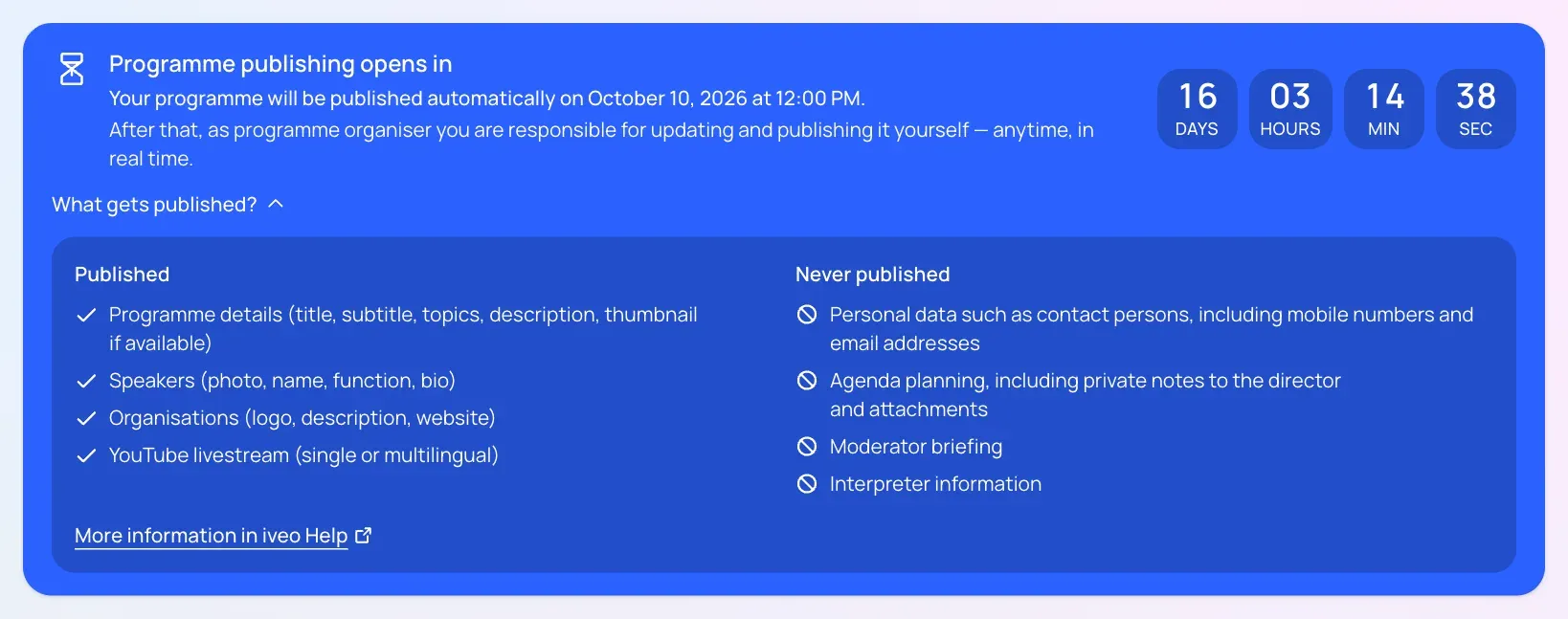
Many events release their programme on a fixed date: every programme item at once, not one after another as people finish. A producer sets this under Settings → Publishing: the date and time from which programmes can be published, in the event’s time zone.
Until then, every programme page shows a banner counting down, and only producers can publish; republishing an already published programme is locked too. On that date the programme goes live; from then on, programme organisers update and publish their programme items themselves, any time, in real time. Once the moment has passed, the banner disappears by itself. Leave the field empty and there is no lock.
“What gets published?” expands the banner and lists what will appear on the event website: programme details including the thumbnail, speakers with photo, name, function and short bio, organisations with logo and description, and the YouTube livestream. It also lists what is never published: contact persons with mobile numbers and email addresses, the agenda planning including private notes and attachments, the moderator briefing, and interpreting information. More on the Event website page.
Programme details, on-site contact and live access
Sample data from a demo event.
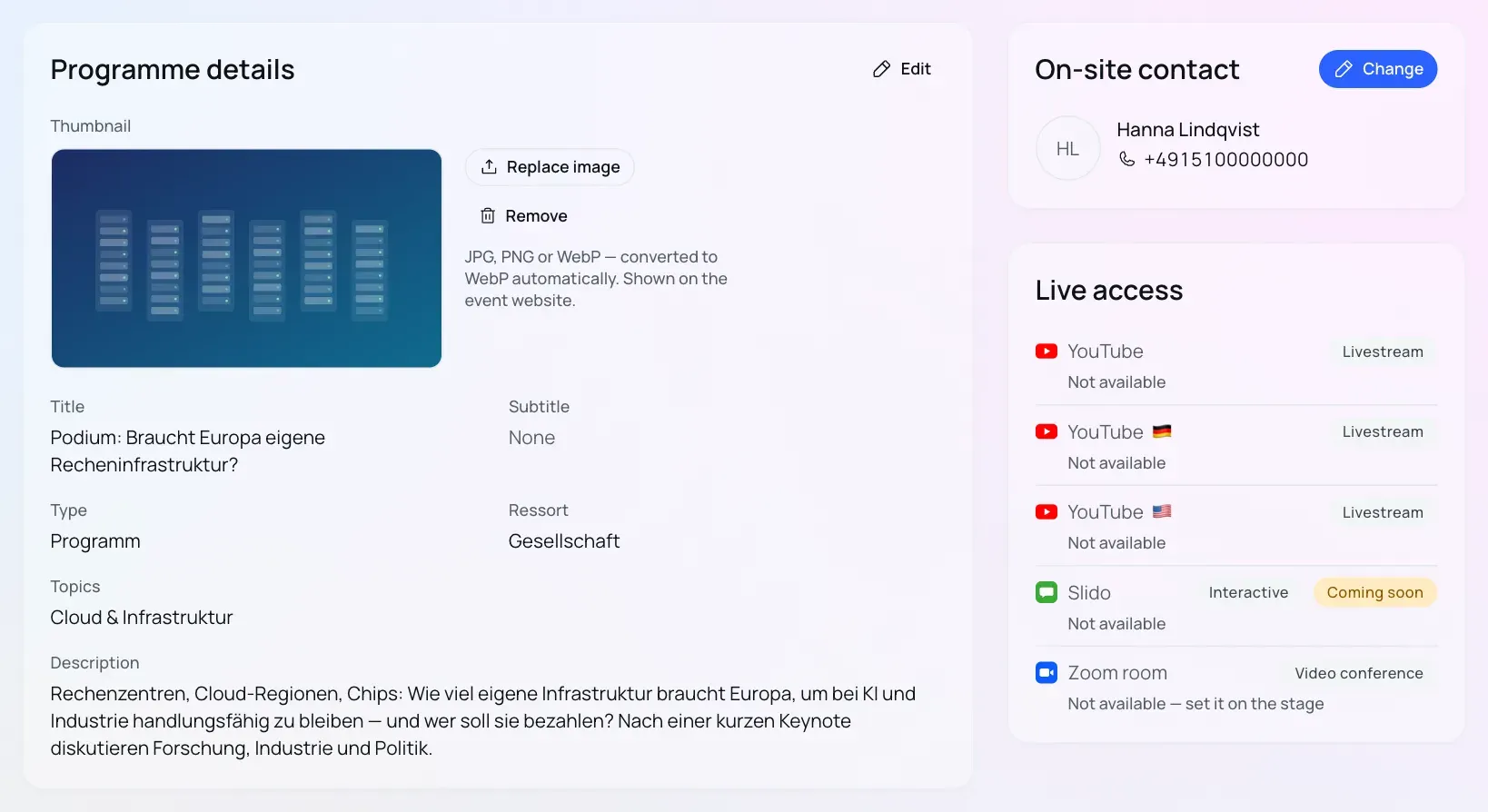
Programme details brings together what defines the programme item: title, subtitle, type, format, topics and description; you maintain the department in a card of its own below. Long descriptions are cut to nine lines and expand with the arrow. Only producers change type and department; you choose the format in the Formats box.
Drag the thumbnail straight into the image field or upload it with the button: JPG, PNG or WebP. iveo converts it to WebP and resizes it on upload, so there’s no need to prepare it. It’s the image shown with the programme item on the event website, and it appears there with the next publication. If a livestream is switched on, it also becomes the preview image on YouTube.
The on-site contact is the person to talk to about this programme item on the day. You pick them from the programme team or invite a new person, who joins the team in the process. Name, photo and mobile number are visible to everyone who can see the programme details, but they never reach the event website.
Live access collects the links for the day: a YouTube livestream per
language channel, with flag and status, Slido for questions and polls (coming soon), and
the stage’s Zoom room. Until publication, a language channel without a
switched-on livestream carries the “Open” tag. Once the livestream is switched
on, every language of the programme item gets its own: the event’s main
language, the programme item’s languages and the interpreting target
languages. Each one sits in its language channel, without a link while it
doesn’t exist on YouTube yet or is private, and after that with a link as
“Scheduled: unlisted” or “Scheduled: public”. The switch shows you for how
many languages the livestream has already been created and, if something goes
wrong, which language is affected. Only producers maintain videos
and the livestream; organisers see only that livestream link, once it is
unlisted or public. The Slido link sits on a card of its own, which organisers
and editors maintain as well; it accepts links of the form
https://app.sli.do/event/…. On the public programme page, Slido appears below
the livestream: visitors load it with a click and ask their questions there.
Questions and polls directly in iveo are coming soon. In live access, Slido only appears when an agenda
point uses it, and Zoom only when someone takes part virtually.
A producer connects the event’s YouTube channel under Settings → YouTube. That’s also where they decide whether new programme items start with the livestream switched on (“Livestream on by default for new programmes”, however a programme item is created), and switch it on everywhere after the fact with “Turn on for all existing programmes”; nothing is created on YouTube by that alone. Under “Hashtags in the description” they add up to five hashtags. “Prepare YouTube” creates the livestreams of all switched-on programme items that start in the future ahead of time, including ones not yet published. They stay private on YouTube until you publish the programme item; if you take it off the website again, its livestream goes back to private. Title and description only contain what the event website shows, or would show once published, so of the people only confirmed ones. YouTube picks up changes to a published programme item only with the next publish. If a scheduled retry doesn’t happen, the livestream shows “Overdue”, and “Retry” starts it again.
Formats and additional requirements
Sample data from a demo event.
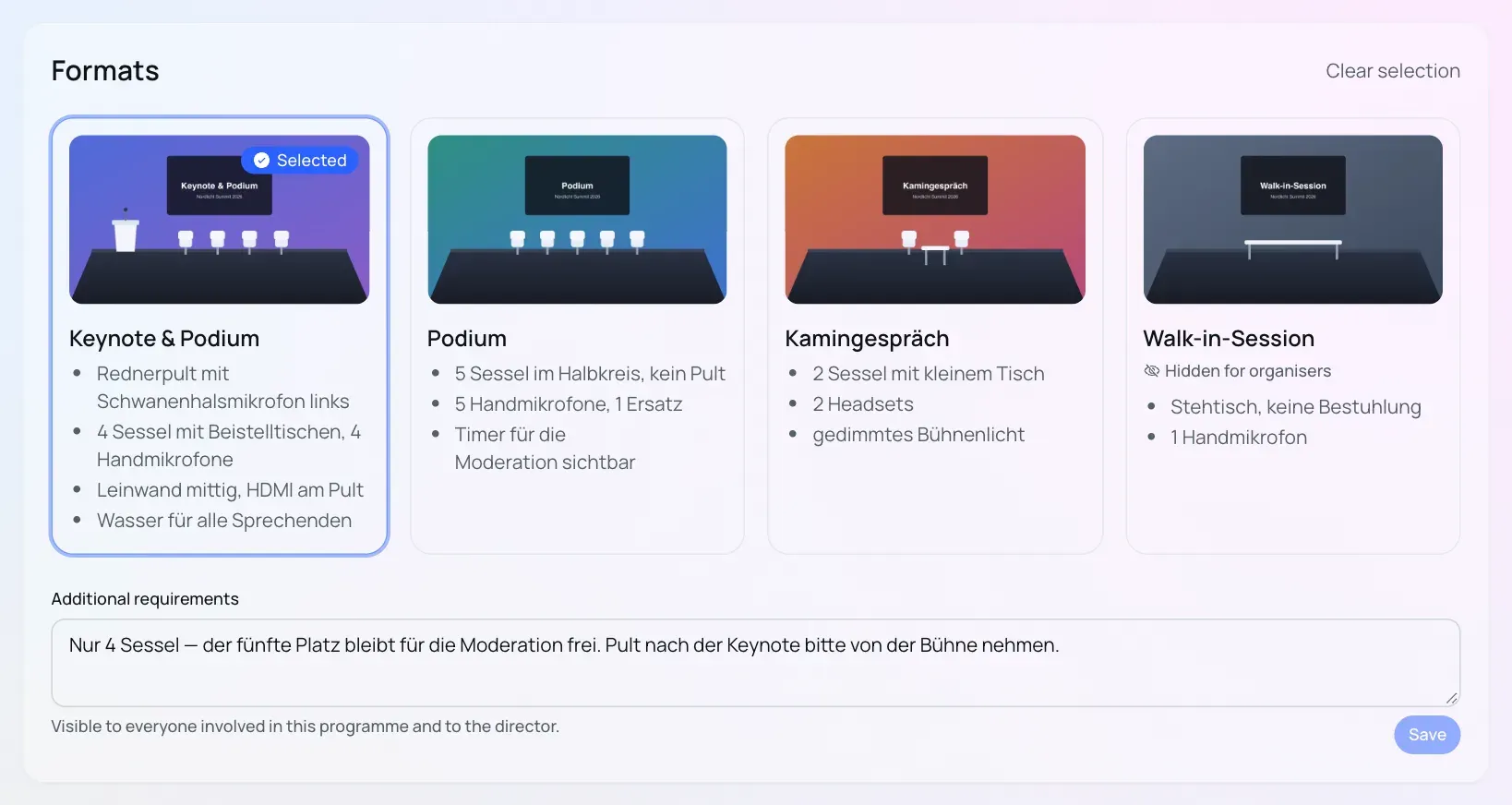
The Formats box shows all of the event’s stage formats side by side, each with a photo or sketch of the stage and a technical description: how many chairs, whether there’s a lectern, how many microphones. This programme item’s format is highlighted. Whoever may edit the programme item selects it by clicking the card, so programme organisers can do it for their own programme items; only producers set a format that is hidden for organisers. Once a format is selected, it sits on the right below live access as a small card with the additional requirements, and “Edit format” opens the full box again.
If your programme item differs from its format, note it under Additional requirements: “only four chairs”, say, or “remove the lectern after the keynote”. Everyone involved in the programme and the director can see this field; it is never published.
People
In the Speakers box you assign speakers and moderation. The order matters, and there are two of them, each in its own tab. “Stage” sets who sits where on stage, left to right as seen from the audience, and is the same list as in the moderation briefing. “Website” applies to the event website and the social media graphics. For each person you also set whether they take part on site or virtually; on site is the default. Virtual participants are not part of the stage order. When you switch someone to virtual, iveo asks: “Save & send Zoom info” sends them the dial-in and the stage’s notes for virtual participants, in the event’s language and with a calendar entry for the slot; the programme team is copied in. Whether and when the Zoom info was sent is shown in the person’s edit dialogue; the row’s ⋮ menu sends it again if needed.
“Add Speaker” sits at the top right of the box, and “Add organisation” in the same place in the Organisations box. Once you pick someone, their profile opens for checking, for people together with “Function on this programme item”. Nothing is assigned until you save; if you cancel, everything stays as it was. The same applies when you change the function of someone who is already assigned.
If the person doesn’t exist yet, you create them straight from the search. The full person dialogue opens with the name from the search: you choose whether they take part as speaker or moderator and can upload a photo right away. Below that you choose between “Enter details manually” and “Let the person enter their own details”. With the second option an email address is enough: “Invite” creates the person and sends them an invitation, so they can add their photo, bio and everything else themselves. Producers can do this, and so can organisers and programme organisers on their own programme items. In the people lists, an invited person then carries the tag “Invited”, and a person with an account of their own “iveo user”.
While an invitation is still open, you remind the person via “Remind about invitation” in the row’s ⋮ menu; in the team dialog the button is “Remind”. The invitation email goes out again, at the earliest every 24 hours per person.
Each row shows the name, the organisations, the role in the programme item and the status: “Confirmed” or “Unconfirmed”, for example while someone hasn’t confirmed yet. You switch the status right in the row or in the person’s edit dialogue. Only confirmed people appear on the event website and in the social media graphics; for a programme item that is already published, this applies from the next publish. In the “Stage” tab, unconfirmed people sit at the end and are not part of the stage order; a note in the tab names them. “Edit” and “Remove from programme” are in the row’s ⋮ menu, and the same goes for organisations. Archived people don’t appear in the box; restore them and they’re back with their role.
If a person is not yet known, “Placeholder” adds an open speaker slot: with a title, an internal note, a role and the “Show on website” switch. You sort placeholders like people and delete them again; “Replace with person” in the ⋮ menu puts an existing or new person in their place, who then shows as “Unconfirmed” in the row. Publicly only the title appears, on the programme detail page of the event website and only after publishing; switch it off or delete the placeholder and it disappears from the website straight away. Only the programme team sees the internal note.
You see the speakers’ AI consent status in the “Transcript” tab of the Media assets card (see below), and that is also where you request it. How consent works is explained on the AI & transcription page.
If a producer has locked the master data of a person or organisation (more on the “Speakers” page), the row carries a padlock; role, participation, order and removal still work. When you assign someone, the search also offers people and organisations from earlier editions of your series, marked with the name of their edition, even if you were never a member there. Contact details are not part of that. If you pick such an entry, iveo creates a copy of it in your event. You open the way into a programme item’s team with the “Manage team…” button at the top. Producers and the organisers of this programme item also see the members’ email addresses there, as a link to write to them.
The agenda
Sample data from a demo event.
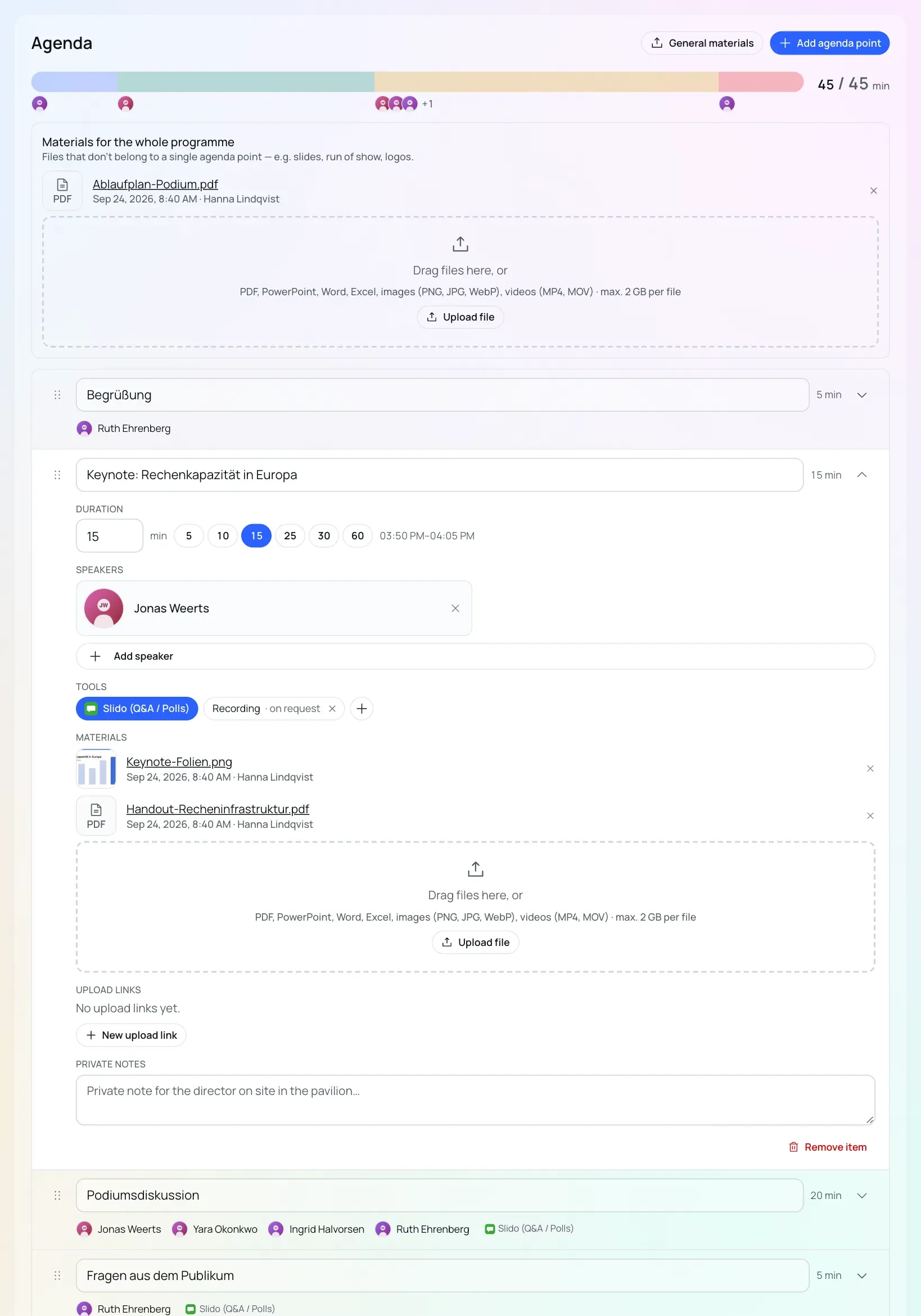
The agenda is the running order inside the programme item. The bar at the top shows how much of the programme time is planned and warns you when the agenda runs longer than the programme. “Add agenda point” creates a new point of ten minutes and puts the cursor straight into its title.
An expanded agenda point is highlighted so it’s clear what you’re working on. Inside you’ll find:
- Duration: as a number or with the quick picks (5, 10, 15, 25, 30, 60 minutes), next to the resulting time.
- Speakers: from the people on this programme item. Anyone still unconfirmed there carries the “Unconfirmed” tag here.
- Tools: switch on Slido directly.
- Materials: drag files into the drop zone: PDF, PowerPoint, Word, Excel, images and videos up to 2 GB per file. While uploading, a bar shows how many MB have been transferred so far. Each file shows a preview, the date and who uploaded it. Clicking the file name opens images, PDFs and videos right in a window; for other files you see their type and size there and download them.
- Upload links, through which external people submit material without an account of their own and stop a running upload with “Cancel upload”, and private notes for the director. The notes also appear in the moderator briefing, never on the website.
Collapsed, each point summarises who’s speaking, which tools are running and how many materials are attached.
Files that don’t belong to a single agenda point (slides, a run of show, logos) go in via General materials. They sit at the top of the agenda and also appear in the moderator briefing.
Editing the agenda is a permission of its own, separate from editing the programme item in general. A programme organiser looks after only the programme items assigned to them and can edit the agenda there, but can’t change date or stage. More on roles on the Roles and permissions page.
Setting up formats
Sample data from a demo event.
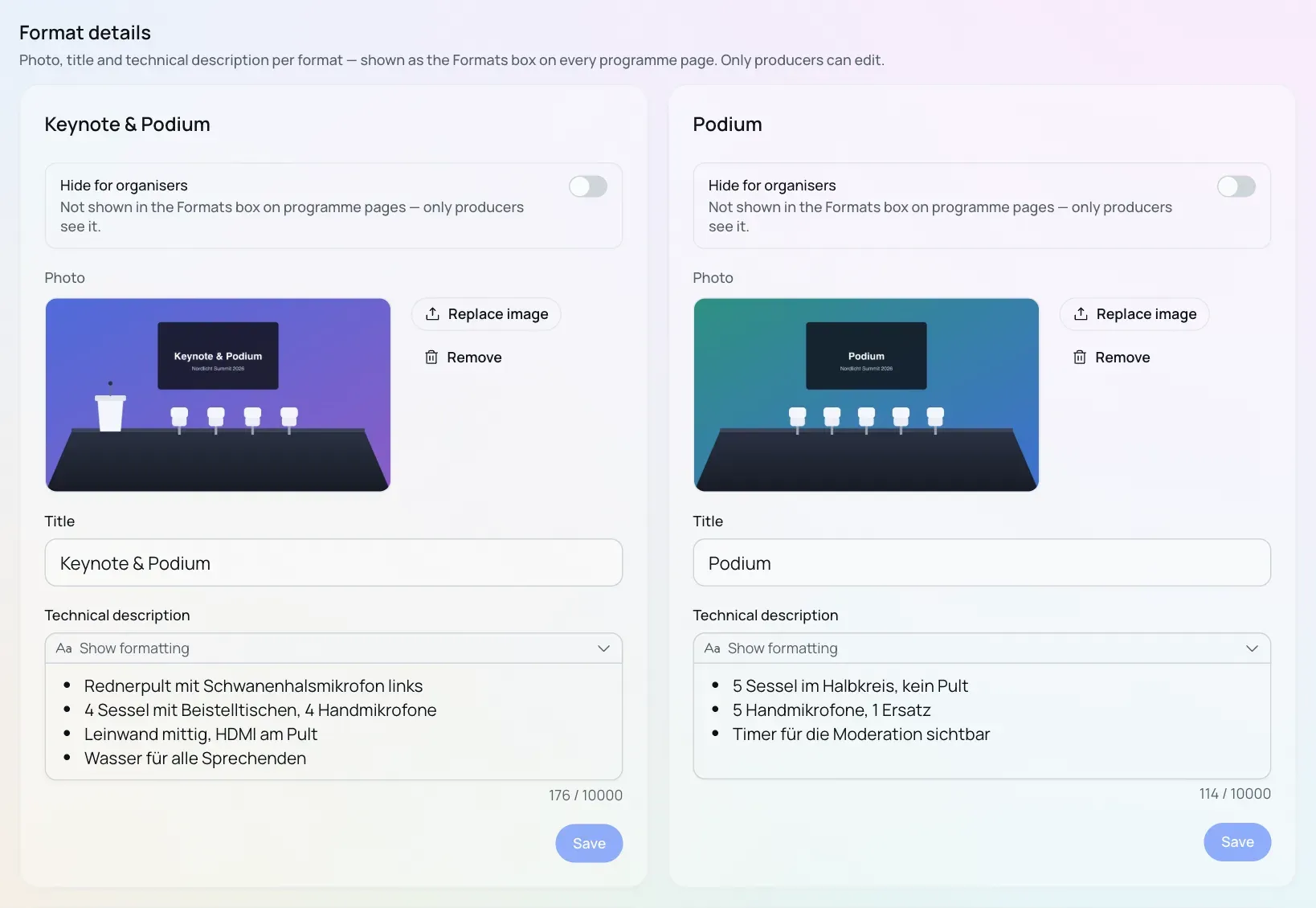
Which formats exist is up to a producer, under Settings → Programme rules. In the Format details section each format gets a photo (also converted to WebP automatically), a title and a technical description with lists and emphasis. “Hide for organisers” removes a format from the box on programme pages, for example one only your own team assigns. Producers still see it, with a note. None of this is published on the event website.
Requesting a moderator
If you pick the role Moderator for a person who requires a moderation briefing (the “Requires a moderation briefing” tick in their profile), iveo does not simply assign them but sends a request. The button in the profile then reads “Send request” instead of “Save”, and clicking it opens a dialogue that asks for a reason under “Why this person?”. Only “Send request” in that dialogue creates anything; “Discard” leaves everything as it was. Such a person is always the moderator on a programme item: when you add them, the role is already set, and only producers can change it. Until they accept, the person shows as “Unconfirmed” in the row; only producers can mark an open request as confirmed. “Remind about moderation request” in the ⋮ menu sends the request again, at the earliest every 24 hours. The person receives an email (in English) and, once they have an iveo account, a notification. They answer in the event on the Moderation requests page with “Accept” or “Decline”, the decline optionally with a note. The page lists open, accepted and declined requests with the date of the reply; “Filter by status” narrows it to “Open”, “Accepted” or “Declined”. When they accept or decline themselves, the programme team gets an email in the event’s language, with the moderator in copy. On acceptance it lists the free slots for the briefing call, if booking is open, with the date and time of that snapshot; on a decline it includes their note, if they wrote one. They can reach the page even if they were only invited to the event as a speaker. Organisers and programme organisers only see the page when they themselves have been asked to moderate, and then only their own requests. Until they accept, the briefing stays visible but cannot be edited. For everyone else, the role “Moderator” is assigned directly.
The moderation briefing and the briefing call
The moderation briefing is a form that the moderator fills in directly in iveo, one per programme item. A producer (or the moderator) sets it up under Settings → Moderation briefing: first “Create catalogue from template”, then switch on “Moderation briefings for this event”. After that, every programme item shows a briefing card as soon as a person with a briefing requirement is on it.
Once the moderator has accepted, they find their briefings in the sidebar under “My briefings” and edit them there themselves. You sort out questions with comments right on the box in question instead of by email; new comments reach everyone involved by bell and email. Every submission saves a version (V1, V2, …) that you can open again later, with the changed boxes marked. Until the deadline, a submitted briefing can be edited again, and submitting it again creates a new version. If the programme changes after a submission, the briefing shows a note. When a briefing is submitted, the moderator and the organisers of the programme item hear about it by bell and email.
Above the form you find “About this programme item” with speakers, organisations and time zone, “Contact the moderation” and “Briefing contact”. You reach the moderator there by email; their mobile number only shows if they have shared it under “My profile”. As briefing contact, organisers pick someone from the programme team or add a new person. In the “Order on stage” you drag the people into their seating order; it’s the same list as in the “Stage” tab of the programme details. If a producer has uploaded a “Stage picture” in the briefing settings, a photo of the stage with numbered seats, it sits next to it. After the deadline, only a producer can change the stage order.
Under Submission deadline you pick one rule: “No deadline”, “X days before the programme starts” or “Fixed date for all programme items”, entered in the event’s time zone. Until then a banner at the top of the briefing counts down, and the briefing card on the programme page shows the time left. After it, the form is read-only for organisers; producers and the moderation can keep editing and open it again with “Reopen”. Comments stay open after the deadline.
Under Briefing calls you offer the moderator a short call before the event: you pick the moderator, the slot length and the meeting link, and add time slots, each with its own time zone, independent of the event’s. “Booking open” releases the booking. Organisers then book a free slot on the briefing page of their programme item, in the “Briefing call” card; there is one call per programme item. If the requested moderator hasn’t accepted yet, you already see the offered slots there with the note “Can be booked once the moderator has accepted.”; you can book only after they accept. The slots are grouped by day, and each day shows the time zone its times are in. Taken slots stay visible, but without a name, and the bookings update live. Before booking, iveo asks you to confirm; if no briefing contact is set yet, you pick one there. Every booking goes out as a calendar entry by email to the person who booked, to the moderator, to the briefing contacts and, if an event mailbox is connected, to that mailbox too, and “Add to calendar” puts the appointment straight into your own calendar. If someone releases the appointment, or the moderator declines the programme item, a cancellation with a cancelling calendar entry goes to everyone who received the appointment. Producers and the moderation see who booked under “Bookings”.
Interpretation
If a person on the programme item does not speak the main language of your event, the Interpretation card points that out and offers a pre-filled button to add an interpreter. You set the main language in the event settings under “Main language of the event”; without it, no hint appears. With “Add interpreter” you create an external interpreter: name, email, optionally phone and mobile, plus source and target language. They need neither a speaker profile nor an iveo account. “Save & send email” sends them an invitation straight away, in the event’s language and, if the stage has them, with the technical notes as a PDF attachment. It also carries a calendar entry for the slot, and the programme team is copied in. “Save” adds them without an email; the row then shows “Not invited” and the “Send invitation” button. “Send invitation again” sends it once more. If the stage notes are missing, the row says so. The interpretation details never appear on the event website.
Social media images
From your event’s branding, iveo creates ready-made social media images for each programme item; nothing is stored, each image is created when you open it. A producer switches this on under Settings → Branding & Media: “Media assets for this event”, then under “Released templates” each template one by one: Programme announcement, Save the date, Speaker announcement and Speaker line-up. On the programme item you choose template and format in the “Graphics” tab of the Media assets card (for the speaker announcement also the person), see the preview straight away and download the image as PNG or JPG. Every template needs a date on the programme item; every time in an image names the event’s time zone. The graphics only show confirmed people, in the order of the “Website” tab; the moderator comes first and carries the label “Moderation” above their name. A note in the card tells you who will only appear once they confirm. The speaker templates only show portraits of people who have released their photo; in the line-up, a person without release appears with their initials. An image you have already downloaded no longer changes if the person hides their photo later.
“Customise design” gives a programme item its own design: its own colours and, as background, the event colour or an image of your own that you keep readable with “Darken”. It applies to all templates and formats of this programme item. The event branding stays unchanged, and the font always comes from the event. “Reset to event branding” removes the programme item’s own design again. Producers and the organisers of this programme item can change the design. At the end of the card, “Event channels” lists the event’s social media channels and hashtags, ready to copy. A producer maintains them under Settings → Branding & Media in the “Social media channels” card; they don’t appear on the event website.
Photos, videos and transcript on a programme item
The Media assets card has three tabs: “Graphics”, “Recordings & media” and “Transcript”. A tab that is still empty carries the suffix “(still empty)” and tells you what will appear there later. Unlike the graphics, which are created afresh every time you open them, photos and videos stay stored on the programme item until someone deletes them.
Under “Recordings & media” photos and videos sit in a tile grid, grouped by type or mixed, and can be filtered to “Photos” or “Videos”. You upload several photos at once, with the button or by dragging them into the card, as JPEG or PNG; iveo rejects HEIC files with a note. The first photo becomes the cover image, and you can pick any other one instead. A click opens a photo large, and the arrow keys take you to the next one. You enter photographer and usage rights once for all photos of the programme item, and “Download all as ZIP” bundles the originals. The originals keep their camera metadata, including the GPS location if the camera recorded it. If you delete a photo, copies that were already downloaded are not affected. For videos you find the finished livestream recordings per language with “Open” and uploaded videos (MP4 or MOV) with length, size and download.
Producers, Operators and Directors upload, pick the cover image, maintain the details and delete. Organisers, Programme Organisers, Editors and Moderators see photos and videos and download them without changing them; Speakers only see those of their own programme items.
In the “Transcript” tab you collect the speakers’ AI consent and activate the AI analysis, as described on the AI & transcription page.
The calendar: scheduling programme items and blockers
The calendar is the visual scheduling surface: stages as columns, time as a grid, in day, week, or month view. You drag programme items and accepted submissions onto a stage and a time by drag and drop, and the duration is kept. Dragging out a time range on an empty cell opens quick-create for a blocker. Copy a selected blocker with Ctrl+C or Cmd+C; Ctrl+V or Cmd+V pastes it onto the day you are viewing at the same time, right after the original if it’s the same day. You convert a submission into a programme item directly on the calendar, with fields pre-filled; a merged group becomes one with “Create as one programme”. For many submissions at once there’s auto-assign, backed by an availability overview. Clicking a tile opens a side panel on the right; for a programme item it shows the status, description, speakers with photo and organisations with logo, plus “Open programme”. The last action can be undone. Locking fixes an entry against moving and resizing. This works the same way for programme items and blockers; a blocker already blocks time through its type, not only once it’s locked. A legend in the calendar toolbar explains how to read the tiles: filled is a programme item, a dashed outline is a submission, hatched grey is a blocker. Colour shows the stage in each case. Without the right permission, the calendar is unreachable entirely rather than just read-only; ask your team if that happens to you.
Who’s online: presence
Working on the programme, you’re rarely in there alone. Lists such as the programme list, stages, people, and the calendar update themselves automatically when someone else changes something, without you reloading the page. Who else is online at the same time shows up as a group of avatars in the header, the presence stack; depending on where you are, it shows either everyone online across iveo or just the people in the current event. Clicking an avatar opens a chat with that person directly. The presence stack only ever shows people you could already see anyway. If it’s empty, that usually just means nobody visible to you is online right now, not that presence is broken.