


Produce
Producing on show day
When the event is running: take stages live, follow the running order and drive graphics for projectors, foyer screens and your stream from your planning data.
On show day the job changes: nothing is being planned any more, things are being run. iveo has a dedicated mode for this: the same data, a different surface. Nobody retypes names into a graphics tool, because the names are already there.
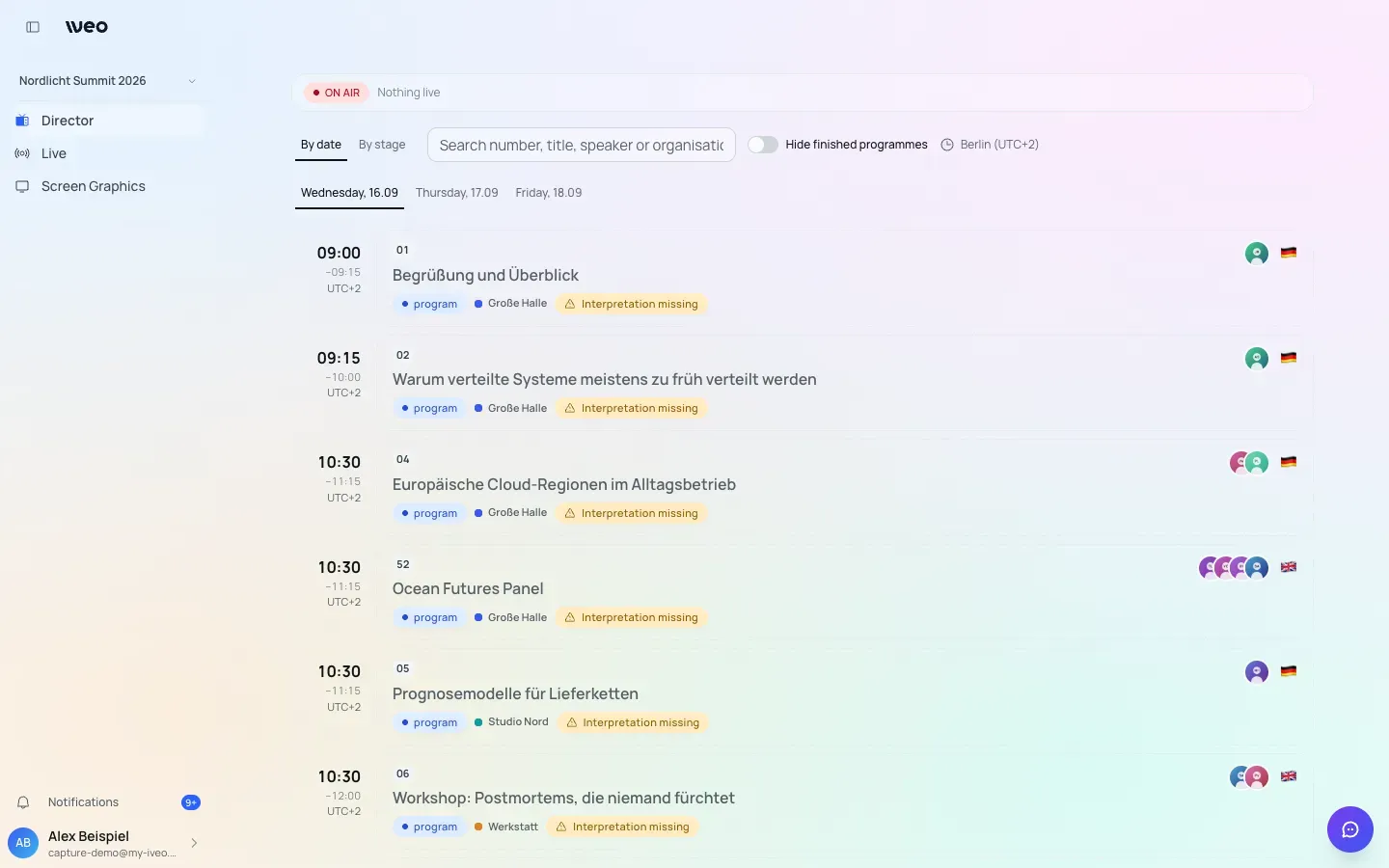
Sample data from a demo event.
Produce mode
Produce mode is a separate area you switch into while the event is running. It does not show the planning tool but what matters now: what is on, what comes next, who is on which stage and when.
Content there is read-only. That is deliberate: while the show is running, nobody should accidentally rebuild a programme. The only things you can change there concern the broadcast itself: taking a stage live, sending the moderation a stage notice and starting or ending the YouTube livestream.
Taking a stage live
A switch sets a stage to “live”. The effect carries straight through: the public event website and every running full-screen graphic follow within a fraction of a second, without anyone reloading anything.
For guests that means the website shows what is genuinely happening at that moment, not what was planned three weeks earlier.
The red “Stop” button asks first: “Stop programme” takes the programme off the stage, “Keep live” cancels.
Starting the YouTube livestream
Once the event’s YouTube channel is connected and the livestream is switched on
for the programme item (see Programme and Calendar), you
start it straight from Produce. The “Livestream” tab on the right of the live
view, or the y key, opens the YouTube control. There, each language has its own tile,
ordered by channel: channel 1 is the event language, from channel 2 on come the
interpretation languages in the order of the interpreters. The header of each
tile shows channel number, flag and language, next to a single status
indicator: before the start the signal on the key, afterwards the state of the
broadcast. Below are the buttons “Signal check for English”, “English live”
and “End English”. At the top, “Signal check”, “Go Live” and “End all” switch
every language at once. “Go Live” also starts channels with a poor signal; a
channel without a signal never starts. Ending asks you to confirm first. Short
explanations sit behind the info icon at the top of the window. Whoever may
manage the channel opens the event’s YouTube settings in a new tab with the
gear next to it.
You switch a channel’s key in the tile as long as nothing is running on it. Keys in use are marked in the selection, for example “in use: signal check”. If a running livestream still sends via another key, the tile says so with “Sending via …”. “Copy stream key” next to the selection puts the key on the clipboard, so you can set up the encoder without YouTube Studio. Below the key is the channel’s “Visibility”; anyone allowed to go live sets it to “Public”, “Unlisted” or “Private” here, and iveo applies it at YouTube straight away.
You check picture and sound before going live with the signal check: “Signal check for English” starts an unlisted test livestream on the same key and shows it right in the window, with no Google sign-in and no pop-up. “Signal check” at the top starts it at once for every channel that is ready. If no signal is arriving at the key yet, the tile shows “Waiting for signal”; as soon as the encoder sends, the picture appears, and after 15 minutes without a signal the check ends on its own. While the check runs, the tile carries the badge “Check” and shows the real signal status. “End check” stops it; going live ends it automatically, otherwise it ends after 60 minutes. If a check is already running on a channel, iveo asks first and starts a new one with “End and start again”. A signal check costs about 300 units of the daily YouTube quota. The signal, not the picture, decides whether to start.
Once a signal arrives, each tile shows a line as in YouTube Studio, for example “Stream quality is good”. If YouTube reports notes on the stream, the line expands to show them; with poor quality they are open straight away. iveo shows the state of the last check, roughly every 20 seconds.
You only need YouTube Studio as a fallback: the YouTube logo on the far right of the tile opens Studio for that language in a small window; there you sign in with an account that manages the channel.
You measure level and picture right in the window, in Chrome or Edge 132 or newer. Measuring starts with your click on a signal check, on going live or on “Sound”, and also with “Level” next to a player. Once per page the browser asks whether you share the tab with audio. The level in dBFS for left and right then sits next to the player that currently has sound; muted players show no level. “Show waveform” at the top lays an RGB waveform over the players and states the result in plain words, such as “Too bright”, “Too dark” or which colour channel is clipping. Everything is measured in your browser only; nothing is sent or stored.
If a livestream has been ended by mistake, it never starts again on YouTube. With “Create new broadcast” on the tile, iveo creates a new one for that language, with title, description, visibility and thumbnail as when publishing. If you end a language that has never been live, iveo deletes its livestream on YouTube and frees the stream key; iveo then creates a new one for that language.
Once live, each tile shows the public stream, delayed by 5 to 30 seconds. Only one tile ever has sound. As soon as a player runs, the first channel has sound by itself; “Sound” on another tile switches over, so you can check each interpretation track on its own. YouTube only loads the picture while the window is open. The top of the window shows how much of the daily YouTube quota has been used. While a stream is running, the header shows “YouTube live · 2 of 3” in red, separate from the stage’s live marker.
A stream key only ever carries one broadcast. If another programme is already running on the key, the start buttons stay locked and the tile names the programme holding it. End it there or give the language a free key. Two languages of one event cannot share the same key.
Producers, Directors and Operators can control it. Moderators see the YouTube control read-only.
The control-room view
The control room sees the running order as a live list: the sequence of speakers with photo, role and allotted speaking time, sorted by the seating order on stage, and the internal notes your team left during planning. Anyone joining via Zoom sits in the same row, with a Zoom badge instead of a seat number. The programme number stands before the title. The arrow keys ← and → step through the stage’s programmes, and reloading stays on the programme you are looking at.
Tabs sit on the right. “Agenda” shows the agenda points as a timeline: each point as tall as it is long, a line for now, plus each point’s files and links and who speaks via Zoom. “Format” shows the format’s name, image and technical description. “Livestream” opens the YouTube control, “Stage notice” the notice to the moderation. If interpretation is set up for the programme item, the “Interpretation” box lists, per person, the language pair with flags, the name and an “Emergency contact”, preferring the mobile number.
All of it comes from the programme you maintained anyway. If something changes at short notice, the change is in the control-room view immediately, not in a printout from yesterday.
The cockpit header shows a second clock next to the event’s time, set to Berlin by default. Clicking it opens a search for a city or time zone; “Berlin (default)” restores the default and “Hide” removes the clock. The choice applies only to you on this device: whoever works remotely sees their own time, the control room on site sees theirs. Both clocks name the city and the UTC offset, for example Berlin UTC+2, and every agenda row carries the offset of its start time. The cockpit always shows the event time zone, even if you’ve switched on “Show event times in my time zone”.
A notice to the moderation
With the “Stage notice” tab or the h key you send the moderation a short
message on their moderator monitor, for example “2 minutes left”. The text has
at most 160 characters. Under “Hide after” you choose “10 s”, “20 s” (the
default), “1 min” or “Until I remove it”. There is exactly one notice per
stage: a new one replaces the active one, and “Remove” takes it away at any
time. Producers, Directors and Operators can send; the moderation only reads
the notice.
Graphics for stage, foyer and stream
These outputs can be put full-screen onto a projector, a foyer screen or into streaming software such as OBS:
- “Now live” per stage: title, time and speakers of the programme item the director has taken live; without a live switch, the stage’s day plan.
- Programme timeline: what is running today, live.
- Moderator monitor per stage: agenda, speakers, times and the stage notice for the moderation.
- Lower third per stage: name, position and organisation of whoever is speaking, over your own graphic. The director triggers it in the live view with “Speaking now”. If speaker detection is switched on for your event, it also starts by itself.
- Interpretation per stage: who is interpreting the current programme.
All of them are simply web addresses. You set them up once and leave them running; you drive the content from iveo, not from the device. How to feed on-site screens with them is in the chapter Screens at the venue.
Who works here
Produce mode is reserved for the roles that genuinely run the show: Producer, Director, Operator and Moderator. Organisers and Editors deliberately have no access: they plan, they do not run a show.
Who gets which role is covered in Roles and permissions.