


Plan
Submissions and calls for sessions
How you collect contributions publicly, review them as a team and turn them into programme items, without a form tool, a spreadsheet and an inbox side by side.
Anyone who does not fill a programme alone collects proposals. In iveo that happens inside the same system the programme is later built in. There is no transfer from a form tool into a spreadsheet and from there into the schedule.
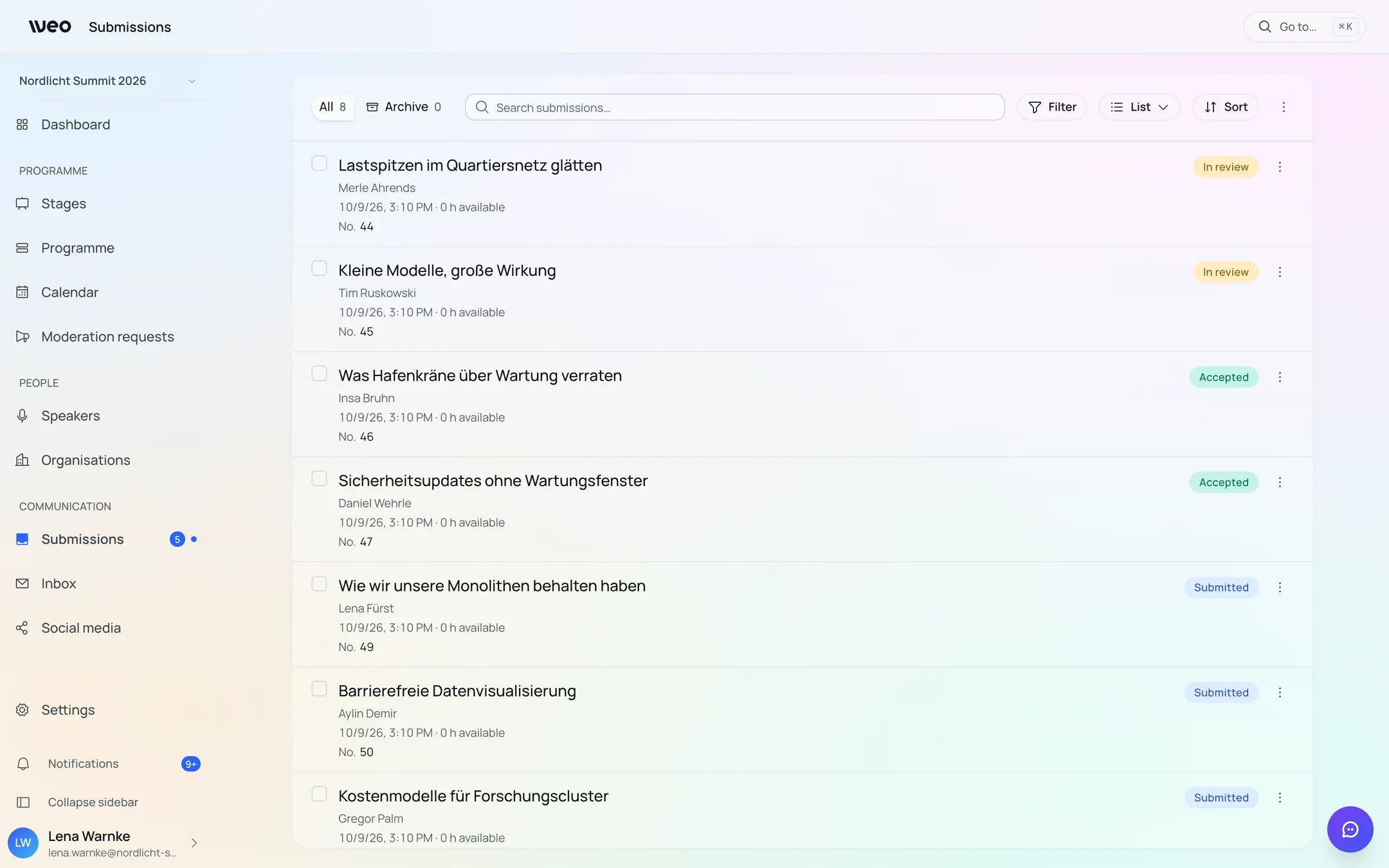
Sample data from a demo event: all names and titles are invented.
The path a submission takes
- Public form. Whoever submits needs no access and no account: a link is enough.
- Email confirmation. The person submitting confirms their address. That makes the contribution formally received.
- Team review. You sift, sort and assess what comes in.
- Accept or decline. A rejection requires a reason and goes out as a message, never silently.
- Into the programme. An accepted submission becomes a programme item, along with its people, organisations and topics.
What you configure on the form
Alongside the standard fields you can ask your own questions, exactly the ones your format needs. Every step of the form can carry its own explanatory text so that people submitting understand what you expect.
The submission deadline ends at the end of the day in the event’s time zone, not the browser’s. The field names that zone explicitly, so nobody has to do the arithmetic. If the form asks for availability, the event time zone is named above that too, and the summary shows the UTC offset for each period. The same applies in the personal link.
People who submit can still edit their contribution through a personal link for as long as it is under review.
What submitters see and may change in this link is up to you: in the submission settings, the “Fields in the edit link” card sets every field, including your own questions, to “Editable”, “Read only” or “Hidden”. Without a setting the link follows the form: what is switched on there can be edited, what is off stays hidden. Values that cannot be edited stay unchanged when the submitter saves; in edit mode a “Not editable” block shows them for reference. Status, “Edit” and “Withdraw” sit at the top of the link.
At the top of the same card, “Editable until” sets a deadline. It ends at 23:59 in the event time zone. Until then the link names the date; after that it shows “Editing period ended”: the submission can only be viewed and withdrawn, and attachments can no longer be changed either. Leave the field empty for no deadline.
Under “Countdowns” in the submission settings you add up to three countdowns per form. Each counts down to the “Submission deadline” or to a date of your choice (“Custom date”), carries its own “Label” per language, and you set the “Smallest unit”, from days to seconds. Under “Show on” you pick “Welcome page” (in three sizes), “Bottom bar of the form” or “Edit link”; under “Starts”, whether it runs “Right away” or only “After the submission deadline”, and whether it shows “Always” or only in the last 7, 14 or 30 days. The bar and the edit link each show the next running countdown.
Reviewing as a team
The overview is yours to compose: you choose which fields appear as columns (including the custom questions from your own form), drag them to the width you want, reorder them and save the result as a named view. The choice is per person and follows you across devices; if you change nothing, you keep the default.
The list’s filter shows every choice field of your form as its own block, including the option “No answer”. Within a field the choices combine as or, across fields as and.
Status changes, topic assignment and internal notes can be made straight from the list. Above it sit metrics you can switch off: how contributions spread across topics, how far decisions have progressed, and where the planning conflicts are. For everything else there is a CSV export. In the event sidebar, “Submissions” shows how many submissions are still awaiting a decision.
If submissions are still missing something, select them in the list and click “Request completion”. Each selected submission gets its own email with its personal edit link. Beforehand, a preview shows you the email and which submissions will be skipped: those without an address, with a placeholder address from an import, or with a status that no longer allows editing. “Send test to me” sends you the email as a trial. Anyone who has already received a link is only emailed again with “Also send again to submissions that already have a link”; their previous link then stops working. The “Link sent” column shows when a link last went out.
A producer adapts the text of this email under Settings → Emails. In the “Sender and replies” card they also set the name the submission emails arrive under and the address replies go to.
Submissions you no longer need in the list can be selected and archived. They disappear from “All” and stop counting anywhere: not in the overview figures, planning or the calendar. The “Archive” tab shows them again, and “Restore” brings them back; the CSV export follows the selected tab. Delete removes selected submissions permanently. Before that, a dialog shows which ones will be deleted and which will be skipped. Submissions already taken into the programme can be neither archived nor deleted. Archiving, restoring and deleting are up to a producer.
Contributions that belong together
Sometimes two organisations submit the same idea. Such contributions can be marked as a group: they remain separate submissions with their own title and their own edit link, but are handled together: one drag in the calendar places every member in the same slot.
A group can become one programme item, with “Create as one programme” on the submission or directly in the calendar’s side panel. You compose the title and description in that step; people, organisations and topics from all contributing submissions come along. Here too, you can invite everyone who submitted to the group straight into the programme item’s team.
The people who submitted are not told about the grouping: not by email, not through their edit link. That is deliberate: your internal sorting is none of their business.
After acceptance
When moving a submission into the programme, you can invite the person who submitted it directly as a Programme Organiser. They then land on their programme item rather than a generic sign-up page, and maintain it themselves from that point on, without visibility into anyone else’s contributions.
The option is switched on by default and off for imported submissions: an import never sends emails on its own. Anyone who is already a member of the event joins the programme item’s team even without the tick, and without an email. How far such a person’s permissions reach is covered in Roles and permissions.
If you move all submissions with a calendar slot at once with “Promote all”, every invited person gets a single email listing all their programme items, each with date and time in the event’s time zone, stage and their own link, instead of one email per programme item. Anyone without an account also gets the invitation. If something goes wrong along the way, the run shows up on the “Activity” page as “bulk promotion”, with reason and count.
When moving a submission into the programme, iveo matches the people in it against your event. If the same person is already there, with the same email address or the same name, they are linked to the programme item instead of being created twice. iveo fills empty fields from the submission, except the email address; nothing is overwritten. Additions such as an office or “(tbc)” stay out of the name, and a person marked “(tbc)” shows as “Unconfirmed” on the programme item. Placeholders such as “N.N.” always become a person of their own. Afterwards, “Already exists?” points out similar people and organisations, including from earlier editions of your series.